Getting started as a player
Creating an account and linking your SkillTag
An account, then a scan of the band: that is how every player gets a profile.
- In the app
Step 1: Create an account
Tap Get Started and choose Continue with Apple or Google, or Use email instead. With email you get a confirmation email; tap the link.
- In the app
Step 2: Scan your SkillTag
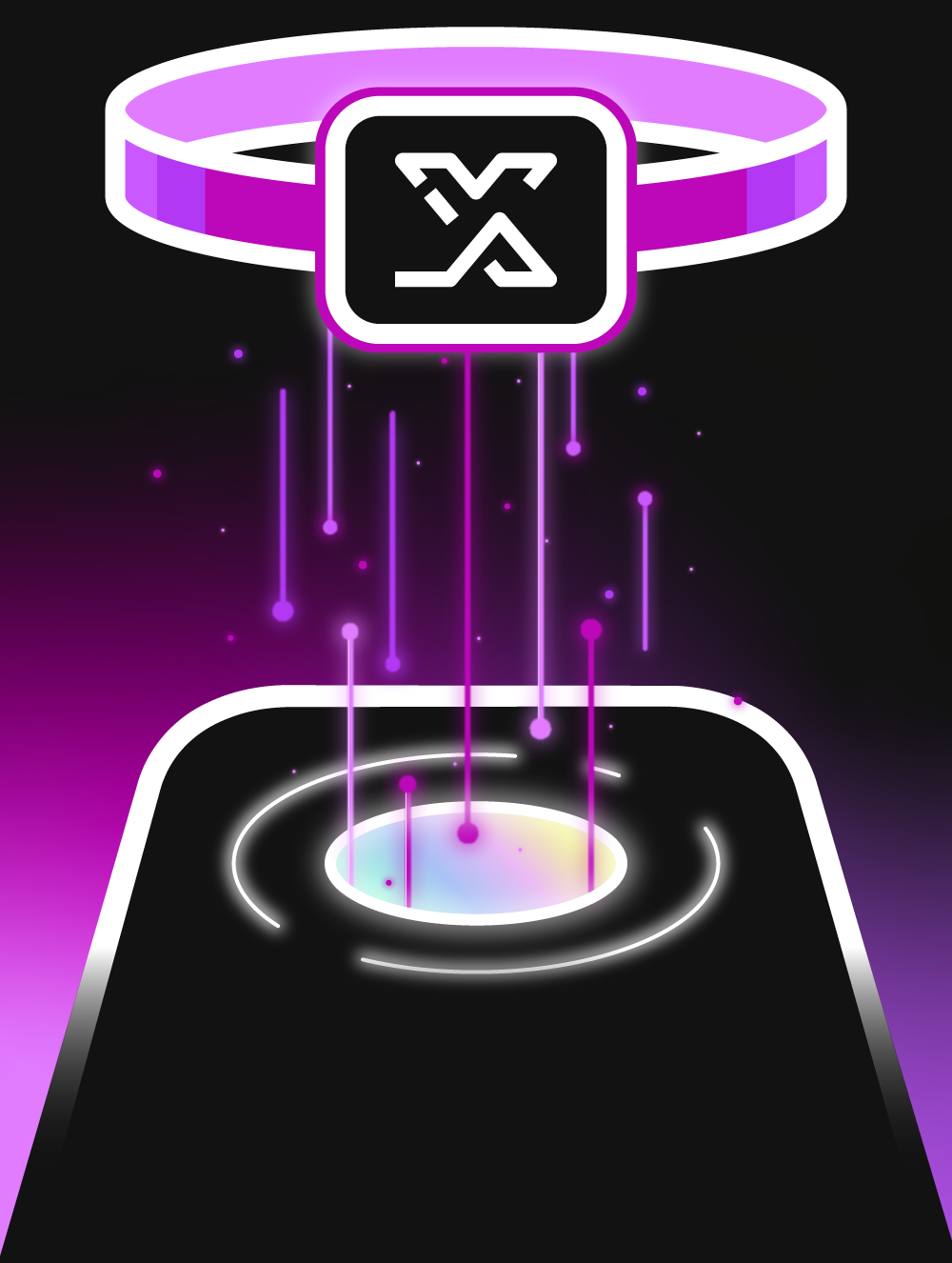
The dashboard asks you to Scan your SkillTag. Hold the band against the top of your phone until the Ready to Scan sheet closes.
The band is a player's key: everything that player does lands on this profile.
- In the app
Step 3: Enter your name and club
Pick a name and a profile photo and tap Next. Then the app asks which club you play for; search for your club or skip this step.
- In the app
Step 4: Add your children
One account can hold five athletes. Go to Settings, Manage athletes, Add an athlete and scan the next band. Switch athletes at the top right of the dashboard.





Also useful
- Linking a new bandBand lost or broken? Report it and scan a new one; the scores stay with the player.
- How children see their own scores at homeThe band from the event is the key: scan it at home and the profile is in the app.
- Installing the BeamsCharge, switch on and understand what the lights mean.
- Downloading the appThe X-Skills app is in the App Store and on Google Play.
- Pairing the BeamsConnect each Beam over Bluetooth; the app gives it a colour and a name.
- Your first game in regular modePick a challenge, set the mode to Regular, check in with your band and play.


 1-3