The Beams
Telling when the battery is empty
The small light on the Beam and the percentage in the app tell the same story.
- At the Beam
Step 1: Read the light
Next to the button is a small status light. Three red blinks followed by the Beam switching off means the battery is empty.
The small status light - Green, steadyOn, or fully charged on the charger
- Green, pulsingCharging
- Red, blinkingError, for example too hot to switch on
- Three red blinksBattery empty; the Beam switches off
- OffOff, or on standby on the charger
- In the app
Step 2: Check the app
Under Devices every connected Beam shows its percentage. During a game the info button opens the devices sheet; below 10 percent the Beam gets a red border with Battery low.
- At the Beam
Step 3: Charge before an update
Firmware updates install themselves, but only above 30 percent or on the charger. A Beam that has been on the shelf for a while needs charging first.
Also useful
- Installing the BeamsCharge, switch on and understand what the lights mean.
- Making the lights brighterOne button at the bottom of the game screen switches between indoor and outdoor.
- Adjusting the Beam's sensitivityFive settings, from low to high, saved on the Beam itself.
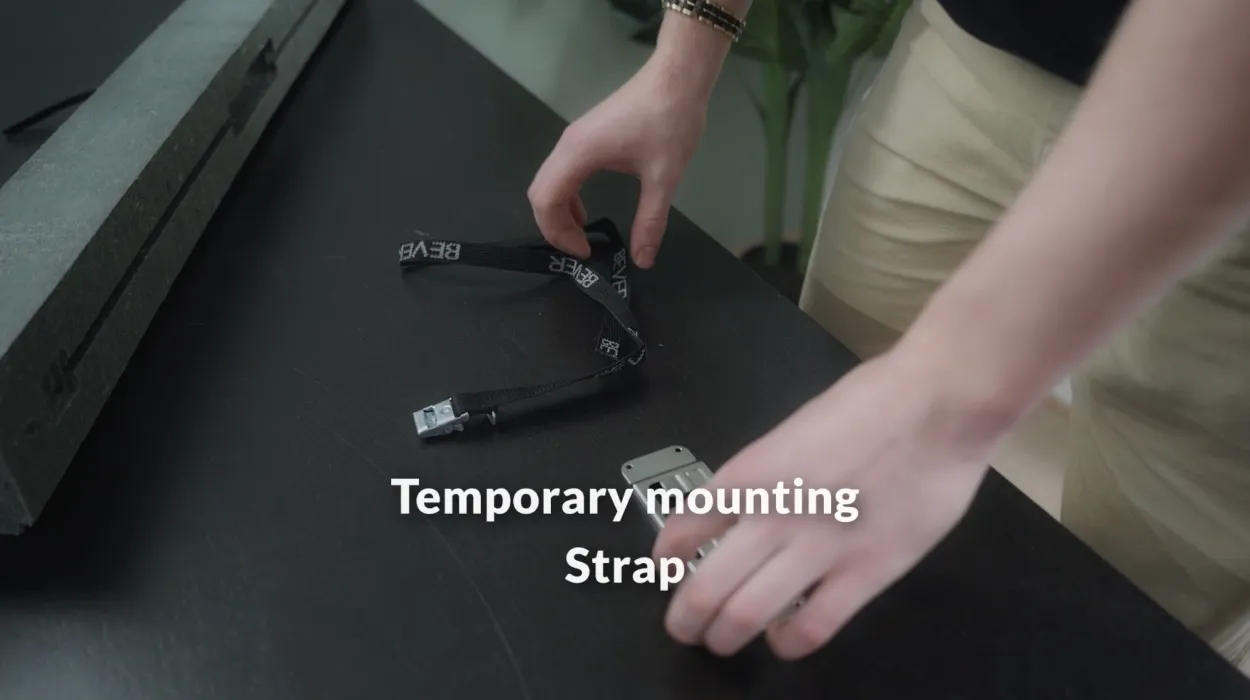
- Mounting the BeamClick the Beam onto the mount plate and attach the plate with the strap, the sticker or screws.