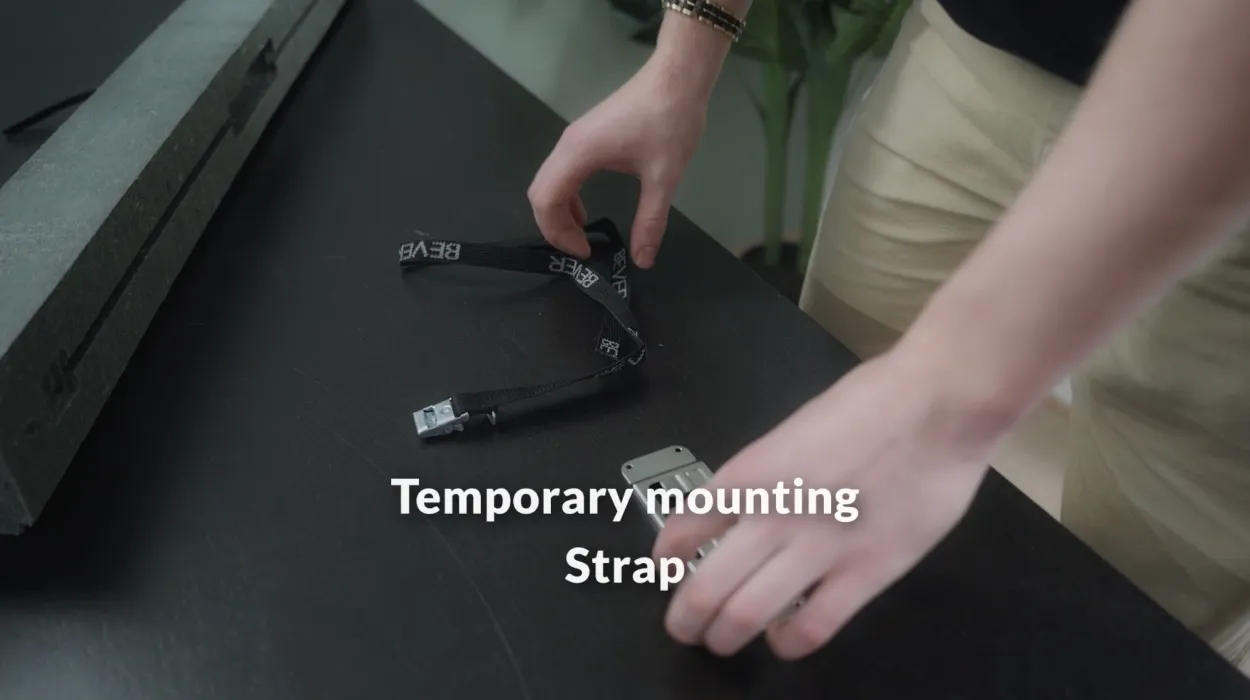
The Beams
Making the lights brighter
One button at the bottom of the game screen switches between indoor and outdoor.
- In the app
Step 1: Open a game
Brightness is not set under Devices but in the game itself, because it depends on where you play.
- In the app
Step 2: Tap the bulb
At the bottom right of the game screen, next to the big button, is a button with a light bulb. One tap switches between indoor (dimmed, up to 30 percent) and outdoor (full light); the button is white in outdoor mode. The app remembers your choice.
- At the Beam
Step 3: Mind the heat
A Beam that gets warm in full sun dims itself a little to stay cool. That is not a fault; in the shade it is back at full strength.

Also useful
- Telling when the battery is emptyThe small light on the Beam and the percentage in the app tell the same story.
- Adjusting the Beam's sensitivityFive settings, from low to high, saved on the Beam itself.
- Mounting the BeamClick the Beam onto the mount plate and attach the plate with the strap, the sticker or screws.